If you're unable to find your iZotope products within FL Studio, please follow the steps below to locate them:
1. Open FL Studio.
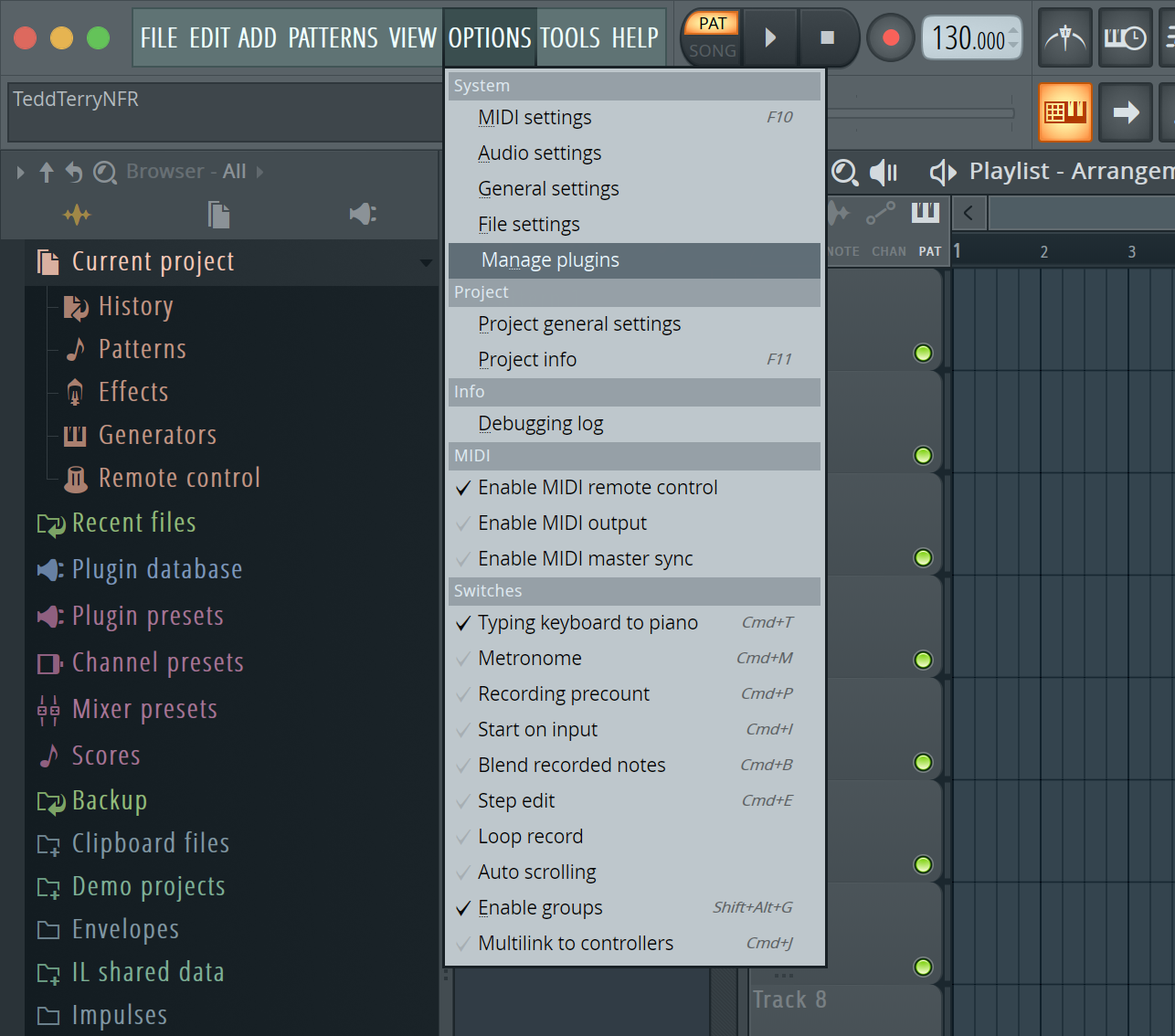
2. In the menu bar, click on Options and select Manage Plugins.
3. The FL Studio Plugin Manager appears. Click on Add path.
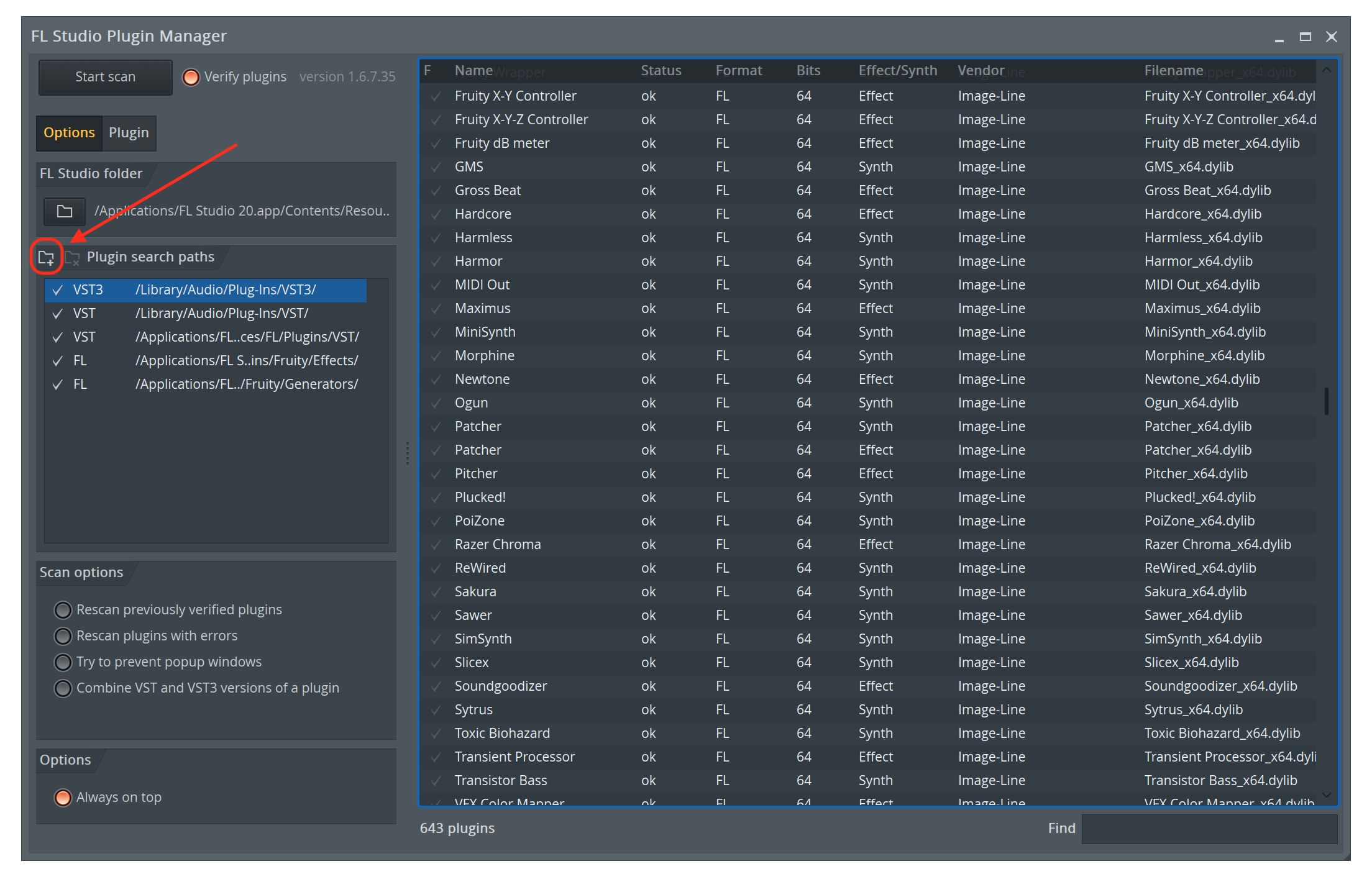
4. Navigate to the folder containing your plug-ins and press OK.
By default your iZotope plug-ins will install to the following locations:
Windows
32-Bit VST2: C:/Program Files(x86)/Steinberg/VSTplugins
64-Bit VST2: C:/Program Files/Steinberg/VSTplugins
32-Bit VST3: C:/Program Files(x86)/Common Files/VST3
64-Bit VST3: C:/Program Files/Common Files/VST3
Mac
VST2: MacHD/Library/Audio/Plug-ins/VST
VST3: MacHD/Library/Audio/Plug-ins/VST3
AU: MacHD/Library/Audio/Plug-ins/Components
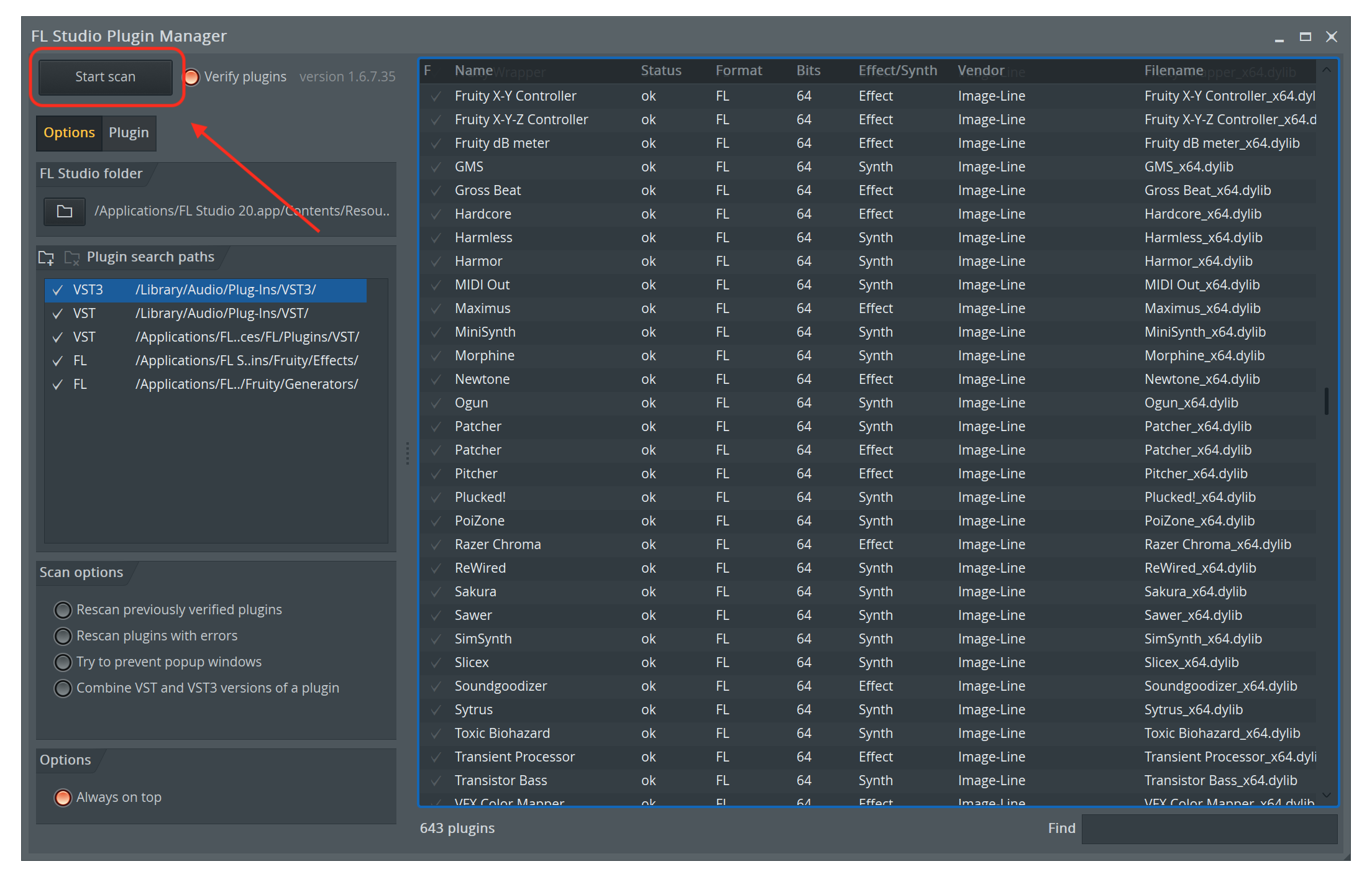
5. The folder containing your iZotope Plug-ins is now listed under the Plugin search paths. Press the Start scan button on the upper left side of the FL Studio Plugin Manager window to scan the content of your iZotope Plug-ins folder.