Creating a project with Spire is easy! Simply follow the steps below:
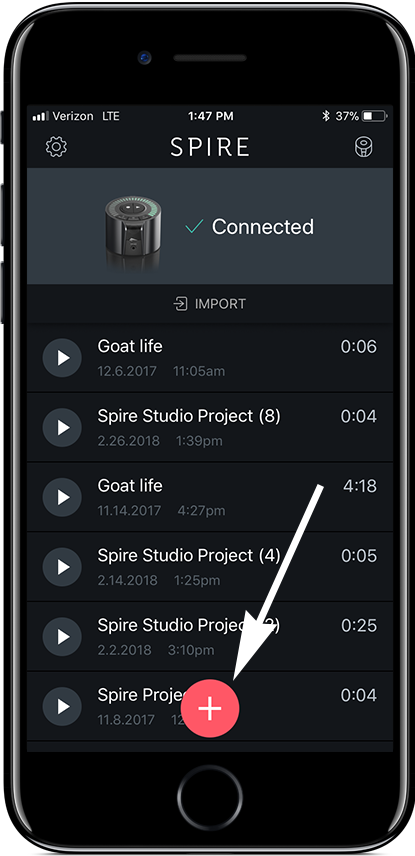
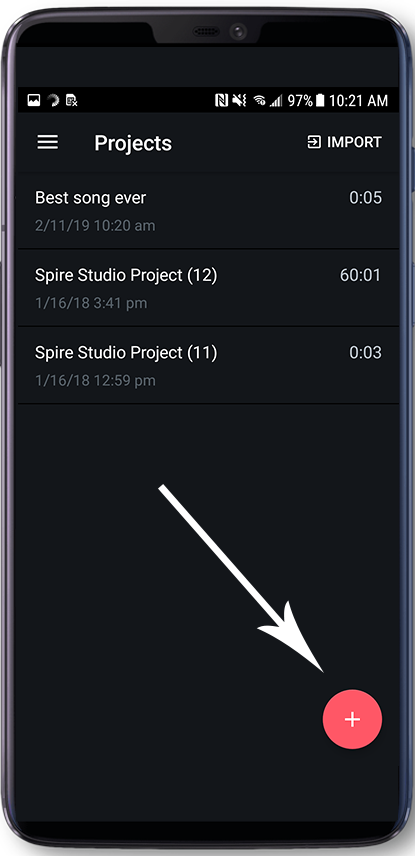
To begin, Set up your Spire Studio by connecting to your iOS or Android device and Perform a Soundcheck. Next, click the giant plus sign at the bottom of the screen.
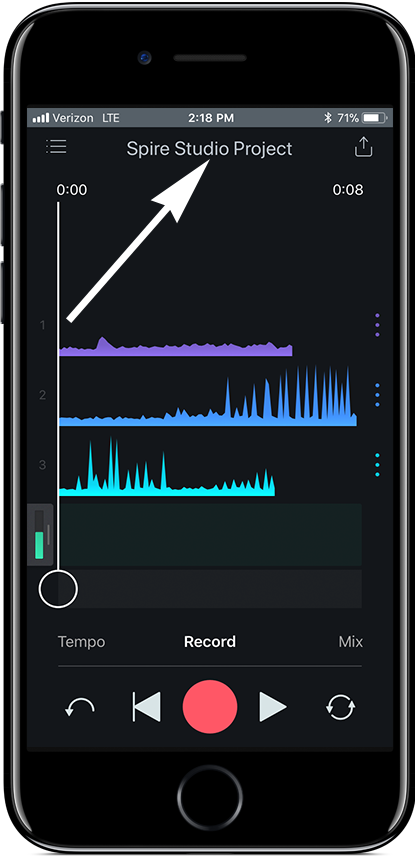
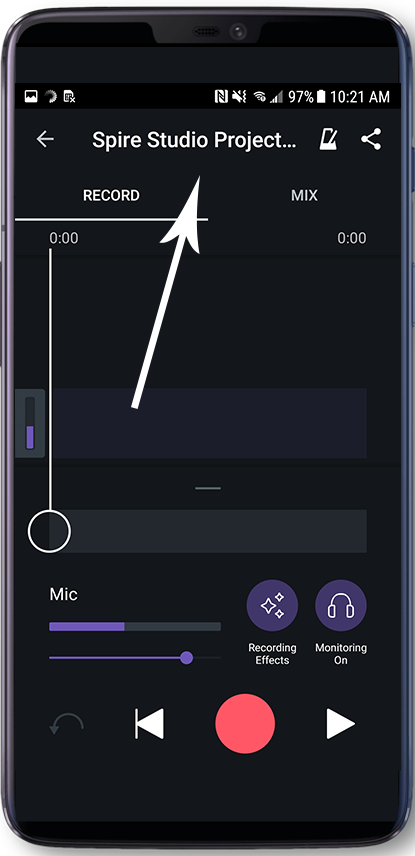
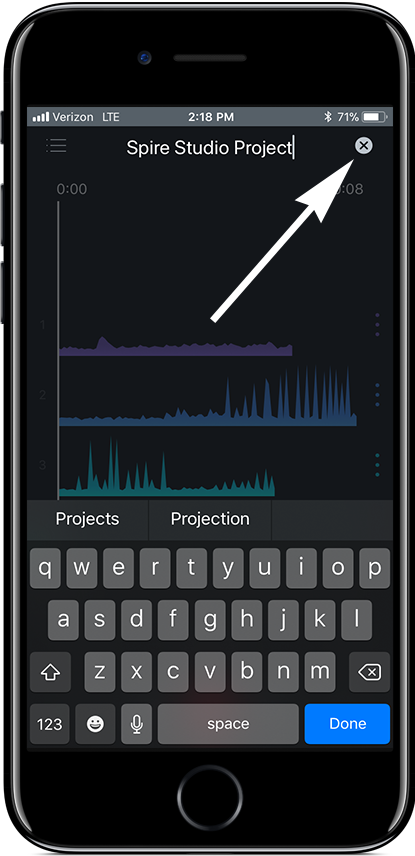
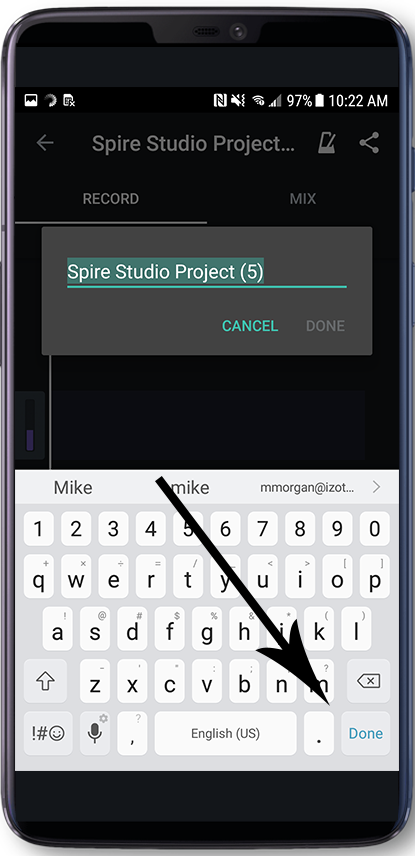
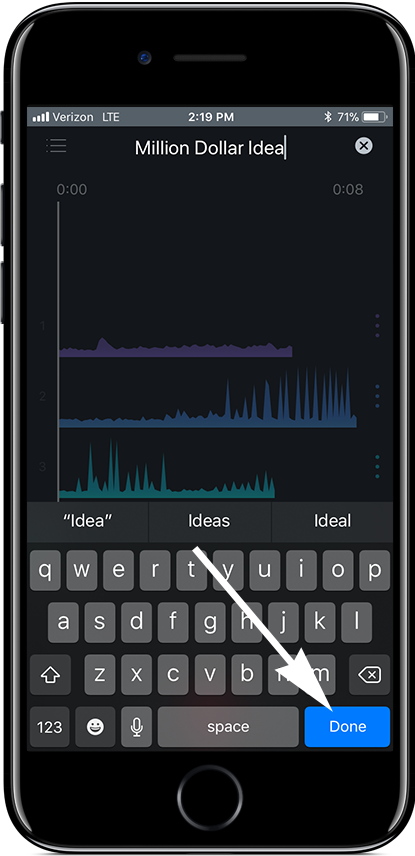
To name your project, start by touching where it says "Spire Studio Project" at the top, then tap the "X" to the right of the project name. Use the on-screen keyboard to type your custom project name, then tap "Done."
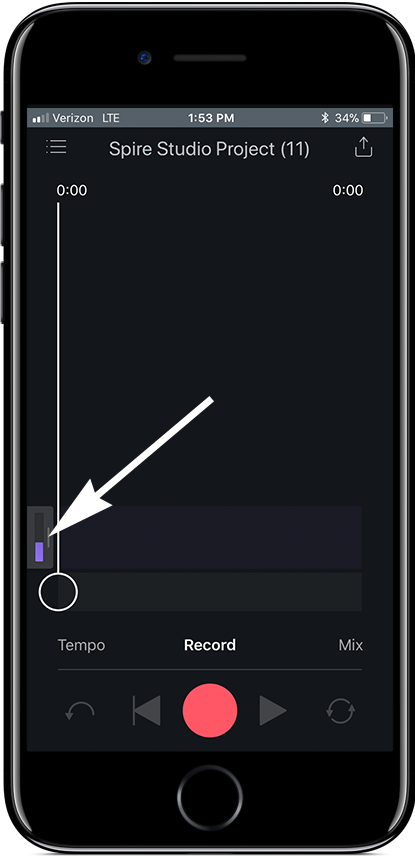
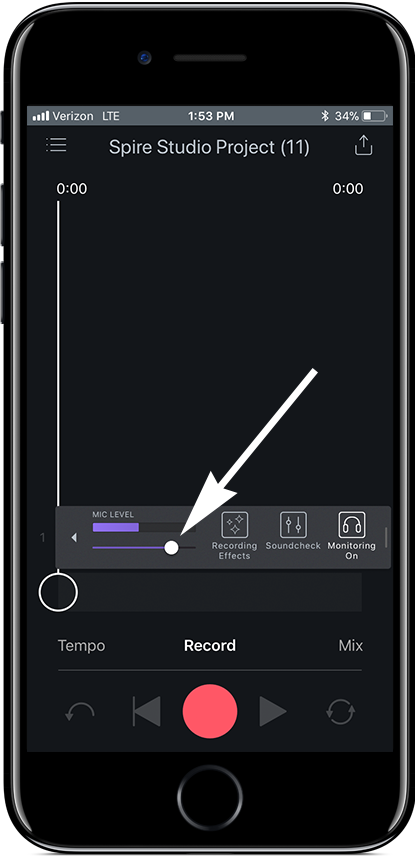
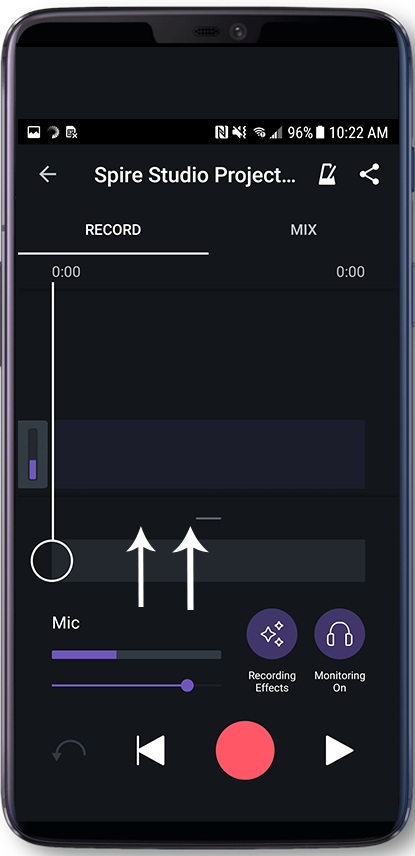
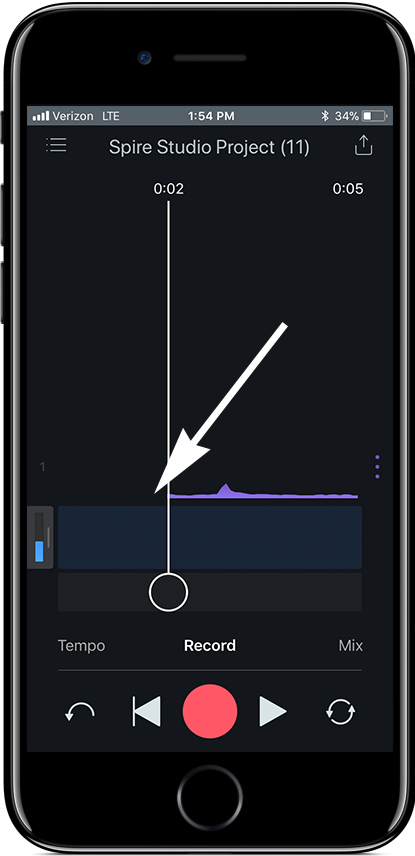
Microphone input level can be adjusted by touching the area indicated below, then sliding the dot to the left or right as shown on iOS, or slide the tray below the track upwards on Android.
To record another track, simply press the Record button again!
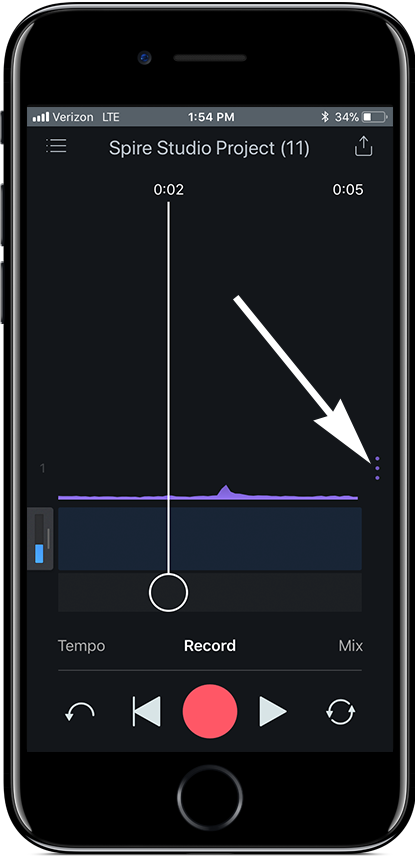
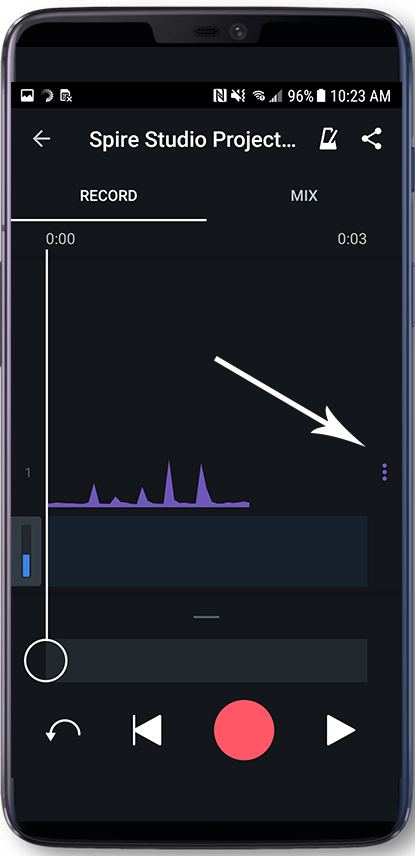
To Mute, Trim, or Delete a track, click the small Menu button to the right of the track.
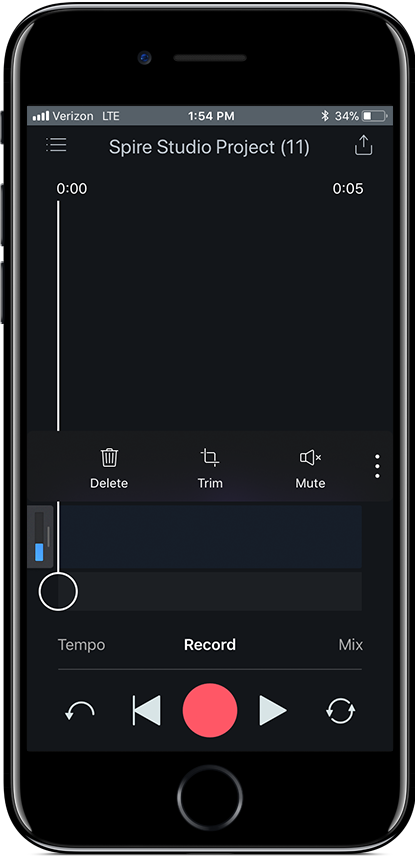
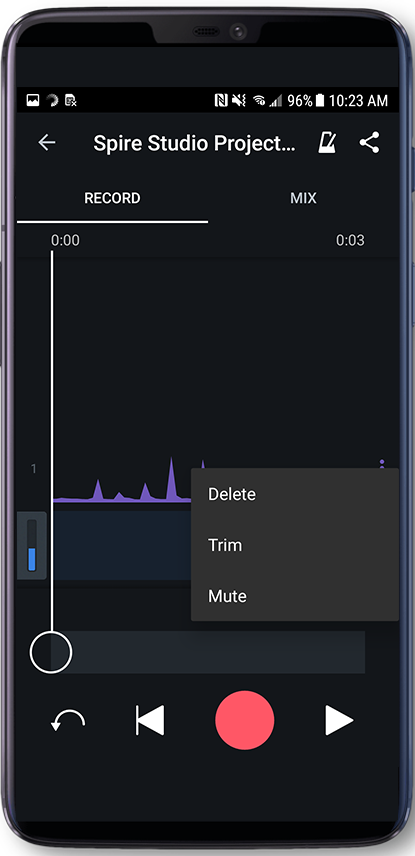
Trimming
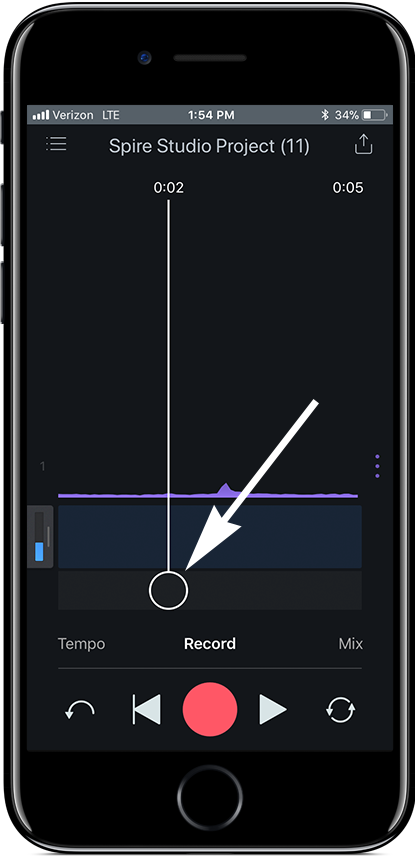
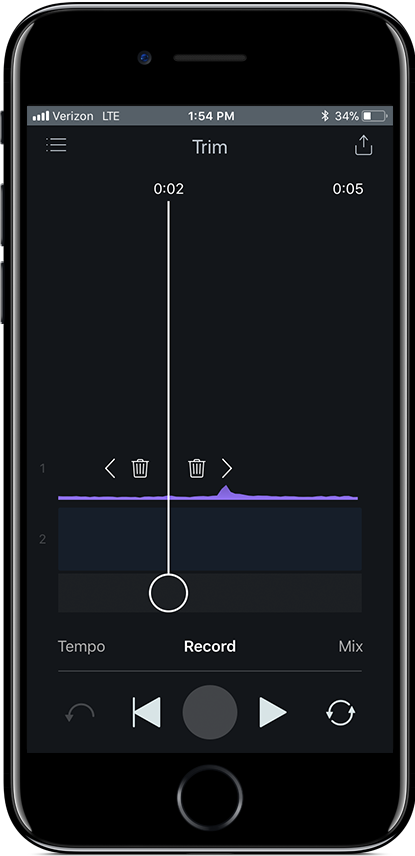
When trimming a track, set the cursor on the spot where you want to insert your trim point, and then choose which side of the cursor you would like to trim.
After recording your tracks, visit the Mix Tab to perfect your mix!