There are two groups of effects in the Spire app, Recording Effects, and Mix Effects.
Recording Effects
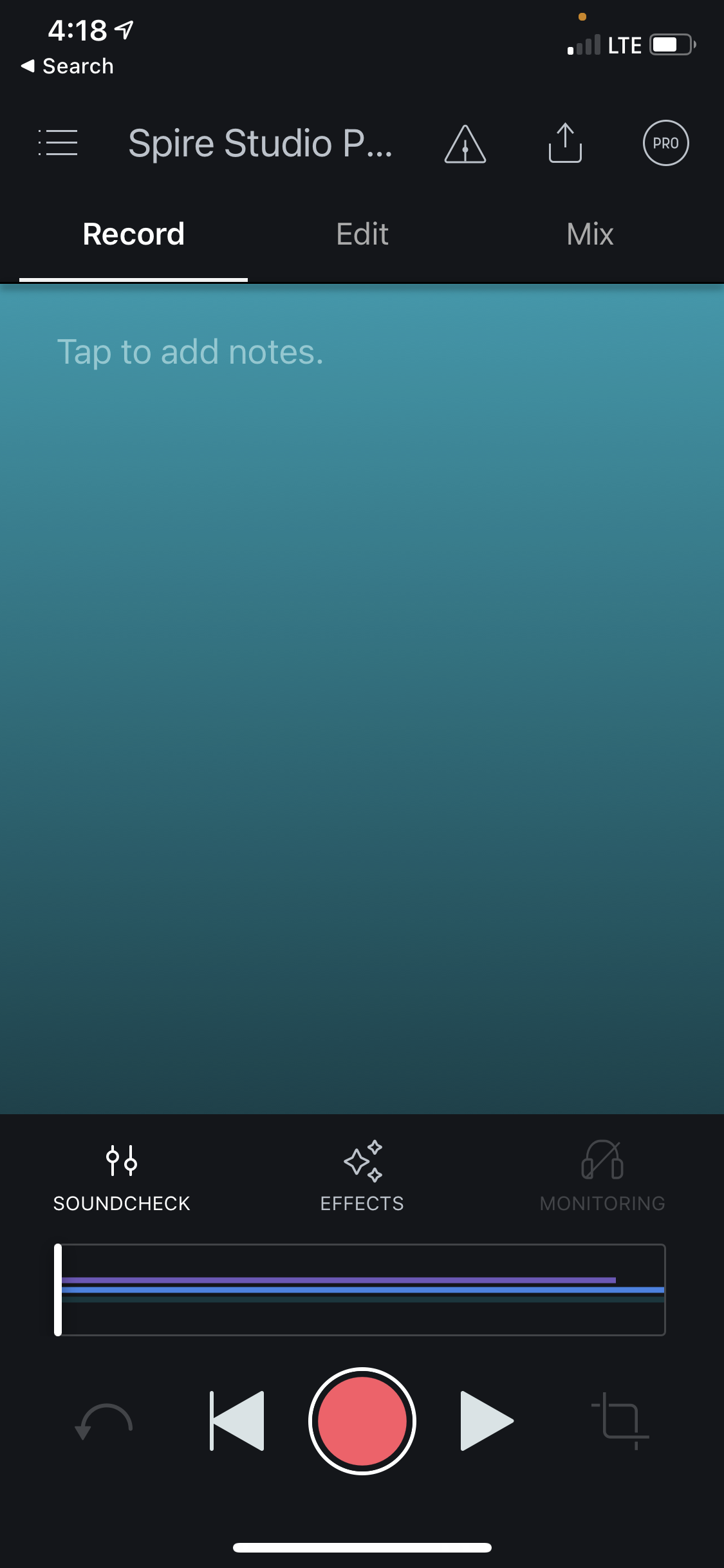
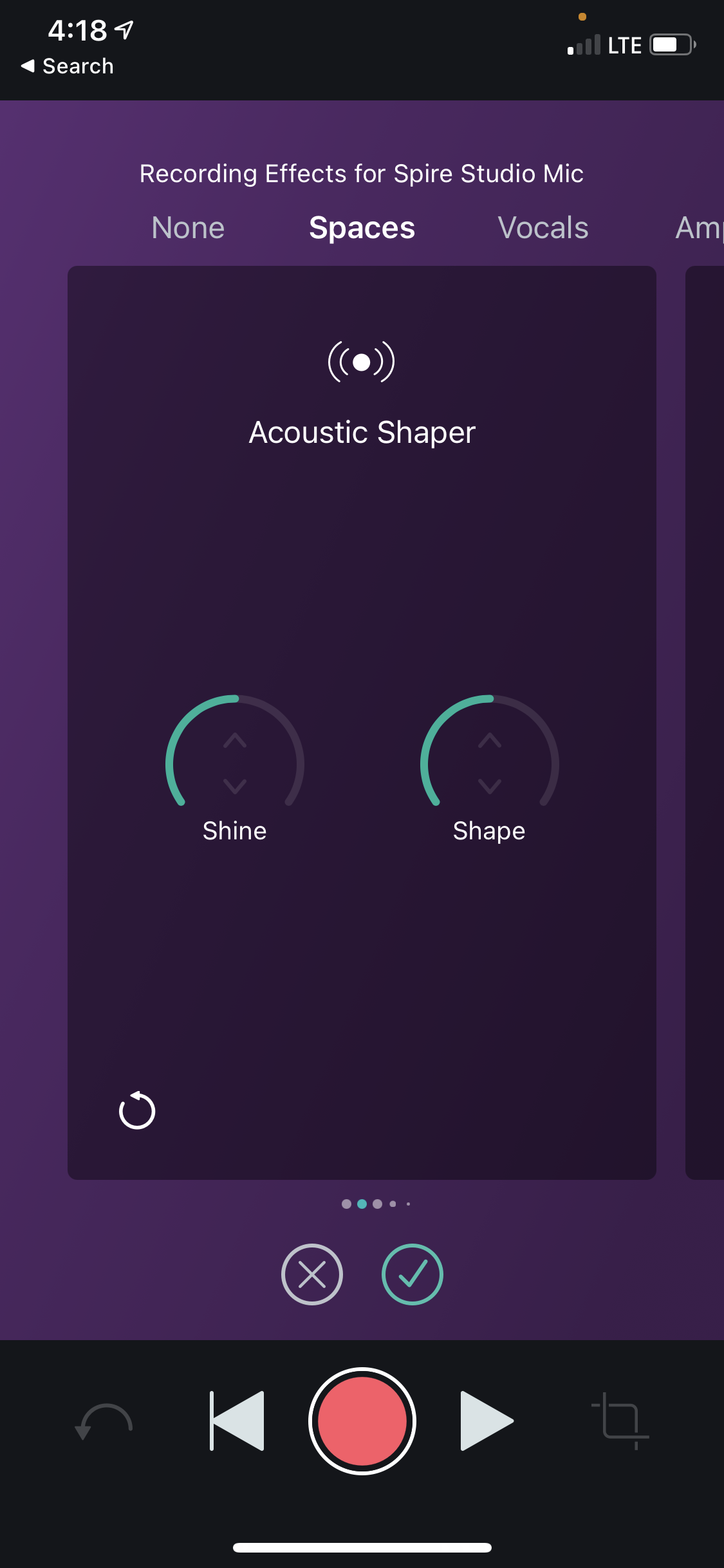
Select “Effects” from the Record tab to view the Effects menu, these require the Spire hardware to be connected. From here you can choose from the following Effects:
Vocal Effects
- Monster Heat
- Encore
- Bright Voice
- Warm Voice
- Rowdy
- Wormhole
Amps
- Classic Stack
- Verb '65
- Tube 30
- Bass
- Echo Fuzz
Spaces
- Acoustic Shaper
- Intimate Space Vibes
- Deep Space Vibes
- Vintage Dub Echo
Pedals
- Big Air
- Capratone
- Purple Phaze
- Revolver
- Rhythm Section
Choose “None Selected” to record your track with no effects. To hear the effects, please be sure that you have headphones plugged into your Spire Studio, and that you have Monitor turned on in the input controls menu. Effects cannot be added after recording, and cannot be removed once recorded to a track.
Mix Effects
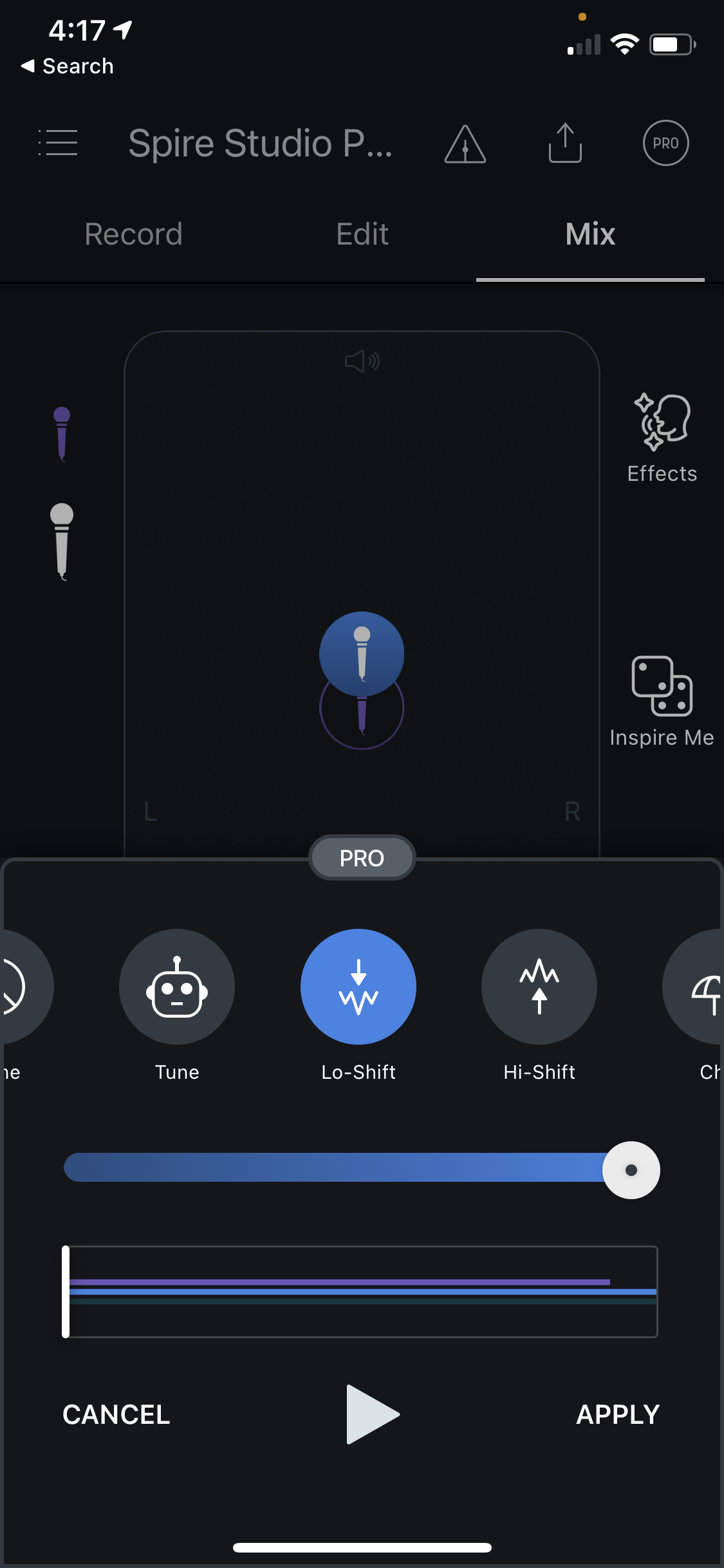
Mix effects, are added after your record from the Mix view. These are the first type of effects for Spire that do not require Spire Studio hardware to access, you can add them within the standalone iOS app if you are a Spire Pro subscriber!
In order to apply a mix effect, you’ll need to disconnect from Spire Studio from your WiFi settings.