When there is a firmware update available for your Spire Studio, the below prompt appears on the Project List screen.
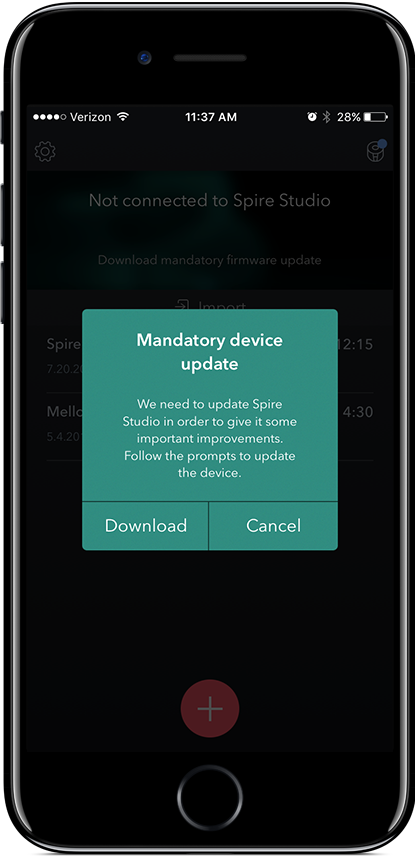
After pressing “Download”, the application will walk you through the following process:
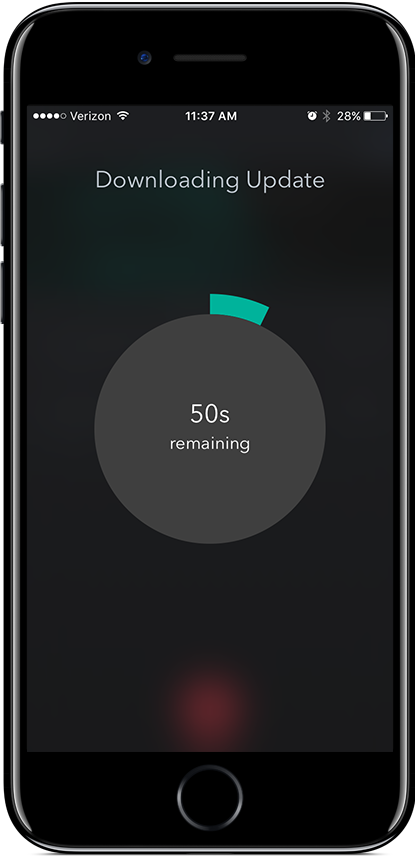
Download the firmware update.
Reconnect to the Spire network.
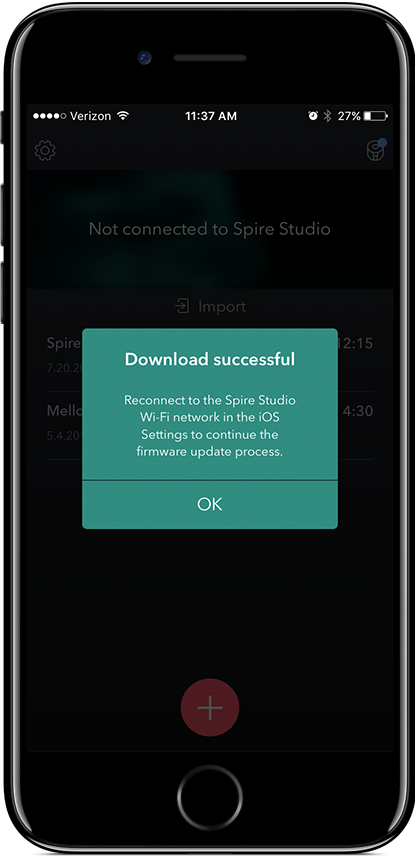
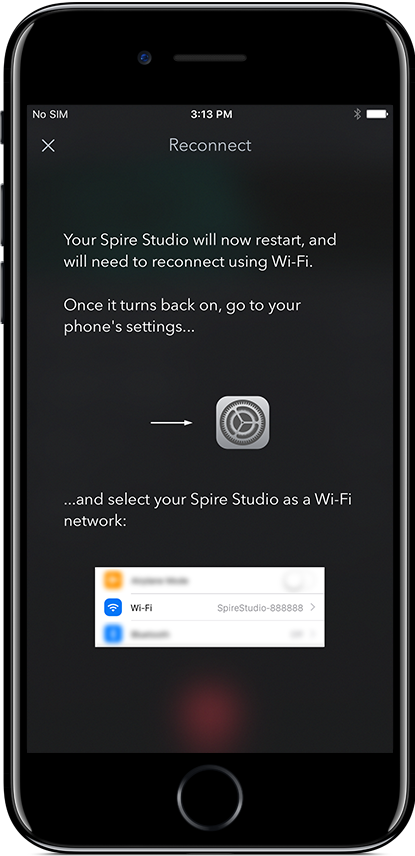
Open your iPhone's settings and navigate to WiFi, then select the Spire Studio network.
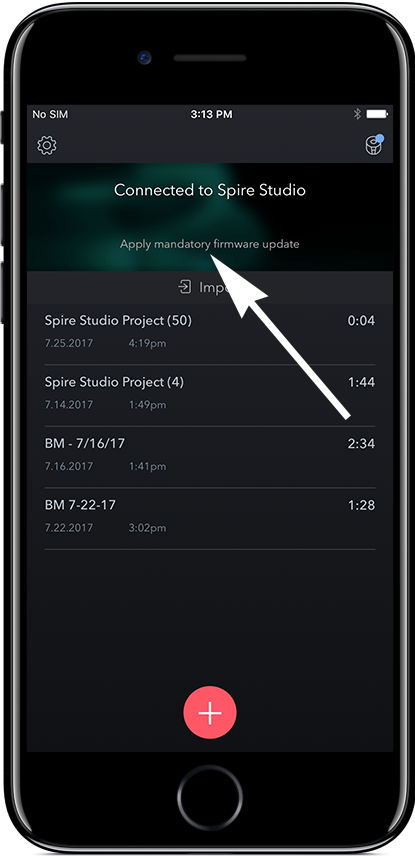
Push the update to your Spire Studio by touching the text indicated above.
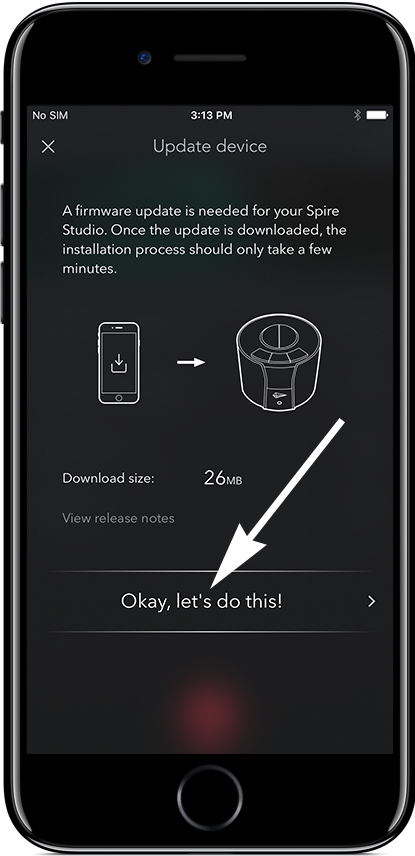
Initiate the firmware installation by pressing “Okay, let’s do this!”
Wait while the update installs.
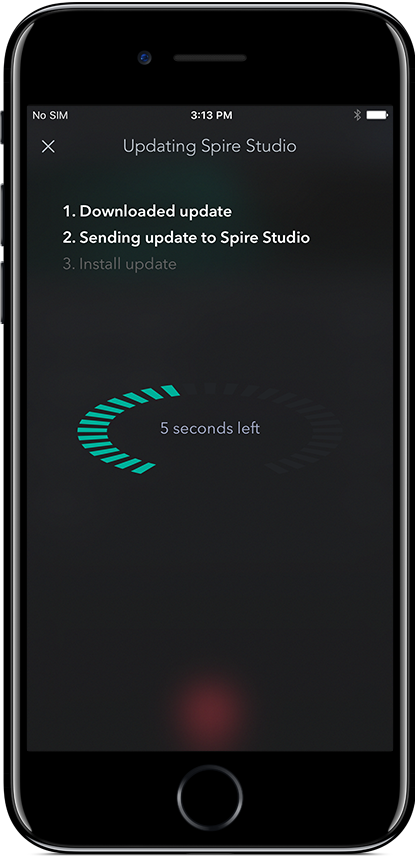
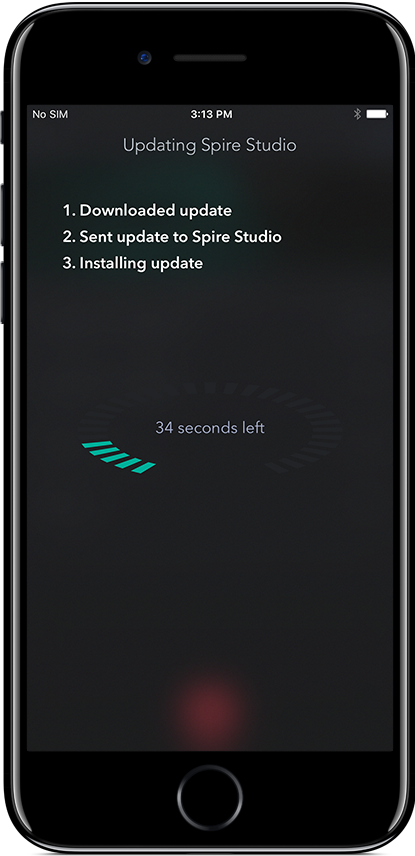
Your Spire Studio will restart automatically. Follow the instructions below to complete the update process.